According to specification, ODBC programs retrieve data exclusively through Structured Query Language (SQL) queries or commands. For this reason, one of the functions performed by AcuODBC is to translate SQL queries into calls that can be executed and interpreted by the COBOL data file system.
SQL is a very complex language, and most ODBC drivers do not support every SQL command. AcuODBC supports the most common commands needed to write a query: SELECT, INSERT, UPDATE, and DELETE. In addition to these commands, AcuODBC recognizes many SQL reserved words and supports many functions. These are listed in section 5.5, "SQL Reserved Words Recognized by AcuODBC" and section 5.6, "Functions Supported by AcuODBC".
The following section describes the SQL syntax of the four commands supported by AcuODBC.
Upper-Case
UPPER-CASE WORDS are keywords.
Brackets
Brackets ( [] ) enclose optional elements.
Ellipses
Ellipses (. . .) indicate repetition. The element immediately preceding an ellipsis may be repeated any number of times.
Other Characters
All the other characters, such as commas and dots, are required when they appear.
Numeric and Non-numeric Literals
A numeric literal is a string containing
Here are some examples of valid numeric literals:
+25 -25 26.0 .78 92 -3.000002 45
A non-numeric, or alphanumeric, literal is a string enclosed in single quotation marks, as in these examples:
'hello' 'now is the time'
Notice that the single quotation mark is actually an apostrophe.
The quotation marks are usually not part of the string. However, two consecutive quotation marks inside a non-numeric literal are interpreted as a single quotation mark as in the following examples:
| Non-numeric literal | Interpretation |
| 'Altman''s Lane' | Altman's Lane |
| '''' | '' |
A date literal has the following format, where YYYY is the year expressed as a four-digit number and MM and DD are the month and day, respectively, expressed as two-digit numbers:
{d 'YYYY-MM-DD'}
For example, the following date literal represents June 18, 2001:
{d '2001-06-18'}
A timestamp literal is similar, but it indicates the time as well as the date. Use one of three formats for timestamp literals, depending the precision required:
{ts 'YYYY-MM-DD HH:NN:SS'}
{ts 'YYYY-MM-DD HH:NN:SS.FF'}
{ts 'YYYY-MM-DD HH:NN:SS.FFF'}
HH, NN, and SS are the hour, minute, and second, respectively, expressed as
two-digit numbers. FF is the number of hundredths of a second expressed as a
two-digit number, and FFF is the number of milliseconds expressed as a three-digit
number. This is based on a 24-hour clock, so there is no need to designate
either "AM" or "PM".
For example, the following timestamp literal represents a time 57.123 seconds after 5:42 PM on March 28, 2001:
{ts '2001-03-28 17:42:57.123'}
The examples in this chapter were developed using ACUCOBOL-GT and Microsoft Access 97. In addition, the data has been linked, rather than imported. See "To access data from Access 2000" in Chapter 5 for more information on linking versus importing and for information on bringing external data into the database.
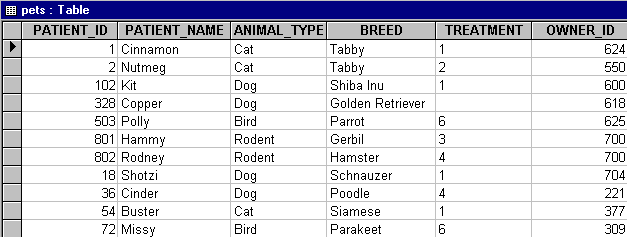
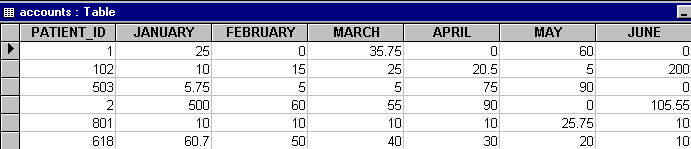
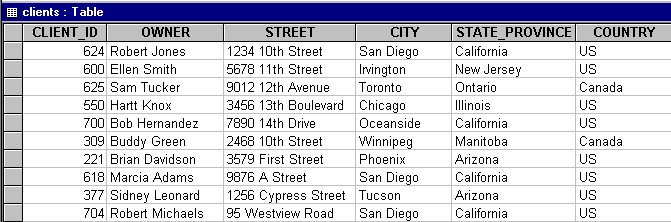
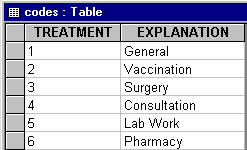
This section contains examples based on four of the sample files shipped with AcuODBC ("accounts", "clients", "codes", and "pets"). These are part of the AcuODBC Datasource DSN included with AcuODBC. You may want to enter the queries in this chapter or experiment with some of your own. Note that the syntax of queries may be different if you are working in a different ODBC-enabled application.
If you haven't done so already, perform these steps to access the data in the sample files. (These steps are for Microsoft Access 97. You may need to perform different steps in a different application.)
1. Start Microsoft Access.
2. Create a new database or open an existing one. If you create a new database, name and save it.
3. Select Get External Data and then either Import or Link Tables from the File menu.
4. Select ODBC Databases from the "Files of type:" drop-down list in the Import dialog box.
5. Select AcuODBC Datasource from the Select Data Source dialog box.
6. Select Select All from the Link Tables dialog box. Click OK.
The tables created by the sample COBOL files, and used in this chapter, appear in Access as follows.
Accounts table ("accounts"):
Clients table ("clients"):
Codes table ("codes"):
Pets table ("pets"):