


Whether you designate an XFD file or not, alfred needs to know which key to use to sort the records.
alfred queries the file about its key structure, and displays this information to the user, one key per line.
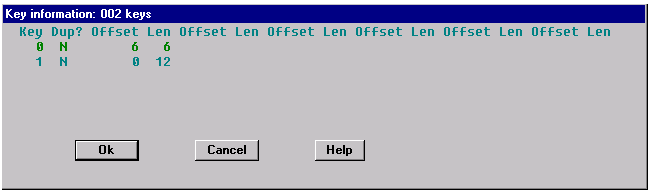
If no XFD is available, the display looks like this:
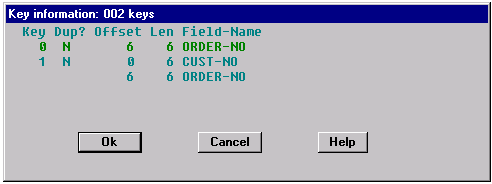
If an XFD file has been specified, the key display for the same file looks like this:
On a graphical system, select a key by clicking on an item in the Key list. Then click "OK" or press <return> to accept the key. On a character-based display, use the mouse or the arrow keys to select the desired key, and press <return> to accept the key. The selected key is used to sort the file.
On systems without mouse support, you can navigate the screen and select a key with the following special keys:
1. The Up arrow highlights the previous key.
2. The Down arrow highlights the next key.
3. The Page Up displays the previous page of keys.
4. The Page Down displays the next page of keys.
5. The Home key returns to the first key.
6. The End key positions the cursor at the last key.
When you have selected the key, if you've designated an XFD file, alfred has all the information it needs to display the data. You are now ready to edit the file. For a discussion of editing options, proceed to section 3.5.5 below. If you are not using an XFD file, you'll need to provide certain keymap information, as discussed in the next section.