


To start alfred under UNIX, enter:
runcbl alfred [datafile [XFDfile]]
at the operating system command line.
To start alfred in a graphical environment, double click on the alfred icon, or use the command line option , such as "Run" in the Program Manager File menu or the Start menu under Microsoft Windows, and enter:
wruncbl alfred [datafile [XFDfile]]
datafile is the name of the indexed file to be edited. XFDfile is the name of the XFD file associated with datafile. Both datafile and XFDfile are optional. However, if you start alfred without specifying a data file name, you will be prompted for a filename and an XFD at the beginning of the program:
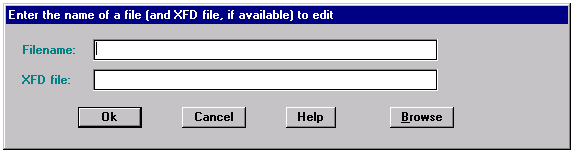
alfred does not use the FILE-PREFIX and FILE-SUFFIX configuration variables. Therefore you need to specify either a full path, or a relative path from the current directory, when you specify file names. You must also include the filename suffix. Note that by default, data files are opened in read-only mode.
On hosts that support a file system browsing function, a Browse push button is included in the bottom right of the File Open dialog box (as shown above). Click the Browse button to initiate the browse activity.
After you enter a filename, even if you do not specify an XFD file, alfred will try to locate a matching XFD file. In order for alfred to begin its search, you must move to the XFD File field on the screen. You may <Tab> over to the field, or click on it with the mouse. Then select "OK" when you are ready for the search to begin. It looks for an XFD file that has the same base name as the data file, plus the extension ".xfd". It first looks for the XFD in the directory specified for the data file. It then looks in the current directory. Lastly, it looks in the directory specified in the runtime configuration variable XFD-DIRECTORY. If alfred finds a matching XFD file, the next prompt you see is for the key selection. If alfred does not find an XFD file, you are prompted for key information.