


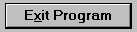
A PUSH-BUTTON control is a region of the screen that the user can push (click or select) to cause something to happen. Under most graphical systems, push buttons appear to be raised up from the surface of the screen. Push buttons do not have values. Instead, they generate events whenever they are pushed. To simplify programming, you can assign termination or exception values to push buttons so that they act like function keys or other terminating keys when used. See the STYLES and PROPERTIES sections that follow for information on how this works.
The set of PUSH-BUTTON properties includes:
Common Properties
TITLE
A push button's title appears centered in the button. The "TITLE" phrase is used to specify the title. A key letter may be specified in the title (see Book 3, Chapter 6, section 6.4.9, "Common Screen Options").
VALUE
Push buttons do not use values.
SIZE
The LINES and SIZE values describe the size of the button's title area. The LINES value describes the height of the title area. The SIZE value is the width of the title area, using the width of the "0" (zero) character as the base unit. Added to the title area is overhead for the push button's border. The exact size of the border area is system-dependent.
When the program executes on a non-graphical system, the values specified in the CLINES and CSIZE phrases, if present, are used in place of the values specified by the LINES and SIZE phrases.
The default LINES value is "1". The default SIZE value is "8".
When the BITMAP style is used, the LINES and SIZE values have a different meaning. The values are the number of pixels in the height and width of the bitmap image (see Chapter 3, section 3.8, for details). If omitted, the default values depend on the host system. Under Windows, the default LINES value is "15" and the default SIZE value is "16". These correspond to the size of buttons typically found on a toolbar.
COLOR
Push buttons ignore any colors specified. The actual colors used are system-dependent. Under Windows, the user selects the colors in the Control Panel.
STYLES
DEFAULT-BUTTON This style indicates that this button is the default push button. The user can push (activate) the default button by typing a termination key that has a termination code of "13". Under the default runtime configuration, this is the "Return" (or "Enter") key. When this occurs, the runtime generates a button pushed event instead of the normal termination event. This ensures that the program treats the "Return" key and the default push button in the same manner (since they both generate the same event). See the TERMINATION-VALUE property described below for related information.
Push buttons with the DEFAULT-BUTTON style are typically displayed differently by the host system. Under Microsoft Windows, default push buttons have a thicker border. Only one button should have the DEFAULT-BUTTON style at any one time. If more than one button has the DEFAULT-BUTTON style, the meaning is ambiguous.
ESCAPE-BUTTON Similar to the DEFAULT-BUTTON style, this style indicates that the push button corresponds to the "Escape" key. The user can push this button by typing a key that has an exception value of "27" (i.e., the "Escape" key in the default configuration). When this occurs, the runtime generates a button pushed event instead of the normal exception event. This ensures that your program handles the "Escape" key and the escape button in the same manner.
NO-AUTO-DEFAULT Normally, when a push button is activated, it becomes the default push button. The runtime accomplishes this by giving the DEFAULT-BUTTON style to the activated push button and removing it from any other push button in the same floating window. This allows the user to type the "Return" key to push the active button. If you specify NO-AUTO-DEFAULT, then this behavior is not applied when this button is made active. The default push button, if any, remains unchanged.
SELF-ACT Normally, when the user clicks on a button with the mouse, the mouse requests that it be activated by sending a CMD-GOTO event to your program (see Chapter 6, "Events Reference"). After being activated, the button can then return that it has been pushed. Buttons with the SELF-ACT style are self-activated instead. This means that they do not send the CMD-GOTO event to your program when clicked. Instead they activate themselves and then send the appropriate button pushed termination status to the program. If you also assign an exception value to the button, it will act just like the equivalent function key. For example, the following statement fragment builds a push button that behaves just like function key 1 (usually marked "F1").
DISPLAY PUSH-BUTTON, SELF-ACT, EXCEPTION-VALUE=1
Self-activating buttons behave differently in some additional, subtle, ways. Normally, if the user down-clicks on a push button and then moves the mouse away before releasing the button, the push button remains active (shown in Windows by a thicker border around the button). But the button is not clicked. Self-activating buttons do not remain active. Instead, they re-activate the previous control. This is done because self-activating controls don't tell the program about the down-click event. To ensure that the program and screen states are consistent, the previous control is re-activated. Also, self-activating buttons do not automatically become the default push button when clicked on with the mouse.
Generally speaking, there is rarely a need to use this style for push buttons defined in a group within the Screen Section. The Screen Section handler performs all the button activation needed when the group is accepted. The SELF-ACT style is mostly useful when you define individual push buttons using the DISPLAY verb (or as elementary Screen Section items) and you do not want to program the activation of those buttons. A common use would be to add push buttons to an existing application where the push buttons will perform the same operation as some function key. In this case, you can simply create the push button with the SELF-ACT style and an exception value that is the same as the function key. Usually, no other coding is needed because the button will perform all of its own activation and simulate the function key when it is clicked.
OK-BUTTON This style is used only when the button is created. It has the effect of changing several of the button's default values. It is equivalent to specifying the following:
TITLE
"OK"
DEFAULT-BUTTON
TERMINATION-VALUE = 13
CANCEL-BUTTON This style is similar to the OK-BUTTON style, but it produces a Cancel button instead. It is equivalent to specifying the following defaults when the button is created:
TITLE
"Cancel"
ESCAPE-BUTTON
EXCEPTION-VALUE = 27
You may override the TITLE and EXCEPTION-VALUE defaults by providing your own.
BITMAP This style causes the push button to be drawn using a bitmap instead of its default appearance. See Chapter 3, section 3.8, for a complete description.
FRAMED This style is used only with bitmap buttons. It requests that a thin frame be drawn around the button. Typically this appears as a thin black line. Not all systems support frames, in which case the request is ignored. By default, buttons are framed under Windows 3.1, Windows for Workgroups, and Windows NT.
UNFRAMED This style is used only with bitmap buttons. It requests that the button be drawn without a frame. Not all systems support unframed buttons, in which case the request is ignored. By default, buttons are not framed under Windows 95.
SQUARE This style is used only with framed bitmap buttons. It forces the button to have square corners. Without this style, the button will have slightly rounded corners.
FLAT This style is used only with bitmap buttons. It creates a button without visible borders on Windows systems. On non-Windows systems, this style has no effect.
Special Properties
BITMAP-NUMBER (numeric) This property identifies a particular bitmap image to use as the push button. See Chapter 3, section 3.8 for details. If you explicitly name this property when creating a control, the BITMAP style is automatically applied by the compiler.
BITMAP-HANDLE (handle) This property identifies the bitmap image strip to use with the push button. See Chapter 3, section 3.8 for details.
TERMINATION-VALUE (numeric) This property modifies the way that a push button communicates to your program when it has been pushed. Normally, a push button will generate a CMD-CLICKED event. If you provide a non-zero TERMINATION-VALUE, the push button will generate a termination condition with the specified value instead. This makes the push button act like a keyboard termination key. Most existing COBOL programs are already coded to handle termination keys, so this is easier for the COBOL program to work with.
EXCEPTION-VALUE (numeric) This property works in a fashion that is identical to the TERMINATION-VALUE property, except that it converts button pushed events into exception events (instead of termination events). If a button has both a TERMINATION-VALUE and an EXCEPTION-VALUE specified, the EXCEPTION-VALUE takes precedence.
Events
CMD-CLICKED
CMD-GOTO
CMD-HELP
MSG-VALIDATE
Examples
The first example creates a simple push button with an ID of "100". The key letter of the push button is "H".
DISPLAY PUSH-BUTTON,

        "&Help",  ID 100,  HANDLE IN BUTTON-1
This next example creates a very tall push button:
DISPLAY PUSH-BUTTON,

        TITLE "Tall",  LINES 3,  HANDLE IN BUTTON-2
The following Screen Section entry creates an "OK" button:
03 PUSH-BUTTON OK-BUTTON, LINE 10, COLUMN 20.
This last example creates a default push button that generates a termination value of "200":
03  PUSH-BUTTON  "&Find",  DEFAULT-BUTTON,

        TERMINATION-VALUE = 200.