


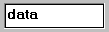
An entry field control is a region where the user can enter or modify text. While entry fields are one of the simplest controls, they are also one of the most complex because of the large number of options that affect them.
Entry fields can occupy multiple lines on the screen. For multi-line entry fields, the system automatically performs word wrapping when the user enters data into the field. For single-line entry fields, the system automatically performs horizontal scrolling when the user enters more text than the field can display.
Many editing keys are available to modify the text. These editing keys are defined by the host graphical system, and cannot be defined by your KEYSTROKE configuration entries. For example, under Windows, when the cursor is in an entry field, the left-arrow key moves the cursor to the left in the field. If the left-arrow key is redefined in the KEYSTROKE file to perform another function, that function is ignored while the cursor is in the entry field.
Character-based systems support two ways for users to insert data into an entry field: insert mode and overtype mode. Windows systems support only one mode: insert mode. By default, character-based systems use overtype mode. If you are running your application on a character-based system and would like Windows-style behavior (insert mode) for your users, you must set the INSERT-MODE runtime configuration variable or have users press the
Entry fields are limited to 32K bytes of text. Memory is allocated as needed.
The set of entry field properties includes:
Common Properties
TITLE
Entry fields do not use titles.
VALUE
Entry fields take a numeric or alphanumeric value.
MULTIPLE
You may use the "VALUE IS MULTIPLE value" option with multi-line entry fields. The value data item should be a one-dimensional table with no subscript specified. The
effect of the MULTIPLE phrase is to match each line of the entry field to
occurrences in the table. The first line is matched to the first occurrence in the
table, the second line with the second occurrence, and so on. Occurrences
that are larger than the number of lines in the entry field are set to spaces when
the entry field is accepted. The MULTIPLE option makes it easy to process a
large multi-line entry field in COBOL.
There is one important issue to consider when you use the MULTIPLE value option. The runtime does not provide a way to limit the amount of text the
user can enter on a single line. Thus, the user could enter more text than a
single occurrence of the value data item can hold. Normally, to prevent the user from entering extra data,
you might set the width of the entry field to be the same as the size of the value data item. However, this does not always work, because entry fields typically
use a proportionally spaced font. Some characters are smaller than others,
and the user can thus enter more of those characters than the width of the entry
field might suggest.
There are two possible ways of addressing this issue. One option is to use a
fixed-width font with the entry field. Then the width of the field matches the
number of characters that the user can enter. The other option is to use a value data item that is larger than the width of the entry field. You will need to
experiment to find appropriate sizes. You might try a value data item that is 20% larger than the entry field.
This issue is not normally a problem for single-line entry fields: the
MAX-TEXT property (see below) prevents the user from entering too much data.
SIZE
Entry fields determine their height by multiplying the LINES value by the
height of the entry field's font. If the entry field is also boxed (the default), then the space
required for the box is added to the height.
Entry fields determine their width by multiplying the SIZE value by the standard or wide font measure as described below. If the entry field is also boxed, the space
required for the box is added to the width. Entry fields have a minimum width
of at least one character.
When the program executes on a non-graphical system, the values specified in
the CLINES and CSIZE phrases, if present, replace the values specified by the
LINES and SIZE phrases.
The default LINES value is "1". The default SIZE value depends on whether or not a VALUE is specified when
the field is created. If a VALUE is specified, the default SIZE equals the
size of the VALUE literal or data item. Otherwise, the default SIZE is "8".
Setting the entry field's width
Most controls, including entry fields, base their width on the width of the "0" (zero) character in the control's font. This usually works well because in most fonts, the "0" character is slightly wider than the average character. This means that the
field is optimally sized for numeric data, and nearly optimally sized for
alphanumeric data (actually it is slightly oversized, which is preferable because
the user can enter data that is wider than average). In cases where the user
enters very wide data, the entry field will scroll horizontally to fit all the
data.
However, there are a few cases where this rule does not produce the best
results. To handle these cases, several special sizing rules apply to entry fields.
The most pronounced problem arises when the input includes a lot of upper-case
data. Upper-case characters are quite a lot wider than the average character ("0"), so when there are many upper-case characters they often do not fit in the
space allotted by the normal rule. Therefore, additional rules handle two
cases: (a) upper-case-only fields, and (b) small fields. Small fields require
special handling because they tend to be coded fields (which are usually shown in upper-case). Also, scrolling in small
fields feels odd to most users while scrolling in large fields is familiar.
To do a better job with these cases, the runtime employs a second font
measurement . The second measure averages the width of the "0" (zero) character with the width of the maximum-width character in the font.
This value is approximately the size of the average upper-case character in
most fonts. We call this measurement the wide font measure. The size of the "0" character is known as the standard font measure.
When the runtime constructs an entry field, the first applicable rule from the
list below is used to determine the entry field's physical size. Overhead for the entry field's box, if present, is added to this width.
1. An entry field is never allowed to be smaller than the size of the maximum
width character. This ensures that at least one character of data is visible in
the field.
2. If the field has the NUMERIC style, then its SIZE is multiplied by the
standard font measure (i.e., numeric fields are normal).
3. If the field has the UPPER style, and the configuration variable EF-UPPER-WIDE
is non-zero, then its SIZE is multiplied by the wide font measure (i.e.,
upper-case fields are wide).
4. If the field's SIZE is less than or equal to the value of the configuration variable
EF-WIDE-SIZE, then its SIZE is multiplied by the wide font measure (i.e., small
fields are wide).
5. Otherwise, its SIZE is multiplied by the standard font measure (i.e.,
everything else is normal).
The default setting of EF-UPPER-WIDE is "1" ("on"). The default setting of EF-WIDE-SIZE is "5".
Tips
1. If your users will primarily enter upper-case characters in your application,
you can set EF-WIDE-SIZE to a large value (for example "1000") to ensure that all of your non-numeric fields allow enough space for
upper-case entry.
2. If you want to ensure that the standard measure is always applied, set both
EF-WIDE-SIZE and EF-UPPER-WIDE to zero.
3. If your upper-case fields are still too narrow (because, for example, you tend
to use upper-case "W" frequently), you can increase the entry field's size further with the FONT-WIDE-SIZE-ADJUST configuration variable.
For a detailed description of the FONT-SIZE-ADJUST and FONT-WIDE-SIZE-ADJUST
configuration variables, see Book 4, Appendix H.
COLOR
Entry fields will use any specified foreground or background color. If either
color is omitted, then that color uses a system-dependent default value. On
most systems, the default foreground is black and the default background is
white. Under Microsoft Windows, the default values are determined by the settings
defined by the user in the Control Panel (usually black on bright-white).
These system-dependent default colors are not transformed or mapped by the runtime's color-handling configuration options.
STYLES
NUMERIC This style causes the entry field to accept only numeric data. The NUMERIC
style is applied automatically to any entry field that has a numeric or
numeric-edited VALUE specified for it before it is created. As a result, you do not
normally need to specify this style explicitly. Use this style when creating
an entry field that does not have an initial value but which needs to be
restricted to accepting only numeric data.
NO-BOX On most host graphical systems, entry fields are boxed (on character-based
systems, they are not). The NO-BOX style prevents the box from being shown.
Generally speaking, boxed entry fields are preferred stylistically, but you may
need to omit the box in order to conserve screen space.
BOXED On graphical systems, this style causes a box to be drawn around the entry
field (the default). You can use the BOXED style to override the
FIELDS-UNBOXED configuration variable for individual entry fields.
3-D This style causes the entry field to appear inscribed into the surface of
the screen. This looks similar to the LOWERED frame style (see the Frames
section, 5.10, below). The runtime uses the background color of the floating window
to determine how to draw the frame. The background color is set when the
window is created, and each time the window is erased. This color must be one of
the low-intensity standard colors, except for black (color numbers 2-7). Any
other background color will prevent the 3-D effect from displaying. Only boxed
entry fields will display 3-D effects.
LEFT This style causes the value to be shown left-justified in the entry field
(the default).
RIGHT This style causes the value to be shown right-justified in the entry field.
CENTER, CENTERED This style is supported only in Windows. It centers the text in the entry
field. This style is allowed on other systems, but it has no effect.
MULTILINE This style indicates that the field can display and accept more than one line
of text. An entry field created with a LINES setting of two (2) or more
automatically has this style applied to it, unless the CELLS phrase is also used or implied. For this reason, you will usually not
need to specify this style explicitly.
VSCROLL This style allows the user to scroll the contents of the entry field
vertically. Without this style, the user may not enter more lines of text than the
entry field can hold. With this style, the field will scroll as needed to allow
the user to enter multiple lines of text. This style automatically implies
the MULTILINE style.
VSCROLL-BAR This style is identical to the VSCROLL style, with the addition that a
vertical scroll bar is placed to the side of the entry field. The size of the
entry field is extended to include the space needed by the scroll bar.
USE-RETURN The "Return" (or "Enter") key typically terminates entry. If you specify the USE-RETURN style,
<return> is instead used by the entry field, when the field is active. This allows
the user to start a new line in the field by typing <return>. Without this
style, <return> will (normally) terminate input.
USE-TAB The "Tab" key is typically used to move between fields. If you specify the USE-TAB
style, "Tab" key pushes are used instead by the entry field, when the field is active.
This allows the user to enter a tab into the field, but prevents the user from
using the "Tab" key to leave the field.
LOWER This style converts all keyboard entry to lower-case for this field.
UPPER This style converts all keyboard entry to upper-case for this field.
NO-AUTOSEL Normally, when an entry field is activated, all of its current contents are
selected and highlighted (exception: if the field is activated by the mouse,
this does not occur). This allows users to replace the entire contents of the
field by simply typing in a new value (they can edit the current contents by
using editing keys, or keep the current value by terminating the field). The
NO-AUTOSEL style prevents the automatic selection from occurring. This is most
commonly used on large multi-line entry fields.
READ-ONLY This style prevents the user from typing or editing data in the entry
field. In all other respects, the entry field behaves normally.
SECURE This style prevents the characters that are entered into the field from being displayed on the screen. In place of each character, an "*" is displayed. This style is normally used with fields that take a password.
SPINNER (Available only with Windows-based systems.) This style attaches up and down arrow buttons to the right side of the entry field. When the user clicks on the up arrow, your program receives a MSG-SPIN-UP event. Clicking on the down arrow generates a MSG-SPIN-DOWN event. Your program would normally respond to these events by incrementing or decrementing the entry field's value. Refer to the AUTO-SPIN style for simplified handling.
Using the SPINNER with a 3-D entry field produces a look significantly different when you use the WIN32-3D configuration option. (create)
AUTO-SPIN Similar to the SPINNER style, AUTO-SPIN provides a more simplified way of handling spinners by automatically updating the value of the entry field. When the user clicks the up arrow, the control's value is incremented by one. The down arrow decrements the value by one. The entry field uses the properties MIN-VAL and MAX-VAL to set the allowed range of values. When the user modifies the entry field's value, the AUTO-SPIN style interprets the current value as an integer and sets the resulting value as an integer. This could have non-obvious results if the field contains something other than an integer when the arrows are clicked.
Entry fields with the AUTO-SPIN style still generate MSG-SPIN-UP and MSG-SPIN-DOWN events. This occurs before the value is changed. If your program sets EVENT-ACTION to EVENT-ACTION-FAIL in response to these events, AUTO-SPIN does not change the value of the entry field. This allows you to do additional range checking; it also allows you to substitute a different value by setting the entry field's value directly in response to the event. (create)
AUTO This style causes the entry field to terminate as soon as it is filled by
the user. A field is considered filled when the number of characters it
contains equals its MAX-TEXT setting (see below). You may also use the words "AUTOTERMINATE" and "AUTO-SKIP" as synonyms for AUTO. This provides compatibility with text-mode COBOL.
NOTIFY-CHANGE This style causes the entry field to generate NTF-CHANGED events. An
NTF-CHANGED event is generated whenever the user changes the value of the entry
field. Use this style when you need to track character-by-character changes to an
entry field.
Special Properties
MAX-TEXT (numeric) This property limits the maximum number of characters that can be
entered by the user into the field. This includes any characters generated by
entering a return in a multi-line field. If the user attempts to enter more
characters than allowed, the system's bell sounds. By default, this property is set to the field's SIZE setting (rounded up to the next whole integer) multiplied by the LINES
setting (truncated to the next lower integer). For a single-line field, if you
use the default MAX-TEXT and SIZE settings, the user will not be able to enter
more characters than the field's VALUE data item can hold. The default MAX-TEXT setting is made when the
control is created. After that, the setting changes only if you explicitly change
it.
If MAX-TEXT is set to zero, then the only limits placed on keyboard input are
those imposed by the host system.
To make a single-line entry field that scrolls horizontally, you would
typically make the SIZE smaller than the size of the VALUE data item, and then set
MAX-TEXT to be the size of the VALUE data item. See below for an example.
MAX-LINES (numeric) This property limits the total number of lines that the user can
enter in a multi-line entry field. If the user tries to enter more lines, a
message box displays that informs the user that the box has too many lines. When
it is set to "0" (the default), the MAX-LINES setting is ignored.
CURSOR (numeric) This property provides a way to position the cursor within the
entry field when the field is activated. You must use CURSOR in conjunction with
NO-AUTOSEL; otherwise the default selection logic will automatically
reposition the cursor to the end of the field.
When CURSOR equals "0", the cursor is automatically positioned by the host system. If CURSOR has a
positive value, the cursor is positioned at that character position (starting
at "1"). For example, if you assign CURSOR to "3", the cursor is placed at the third character (either on the third character
or between the second and third characters depending on the appearance of the
cursor).
When CURSOR equals "-1", then all of the text in the entry field is selected and the cursor is
positioned to the end of the selection.
Ordinarily, this property is not needed. However, one example where you might
want to use it is in combination with the NOTIFY-CHANGE style. As the user
fills in the field, your program acts on each keystroke. If you change the value
of the field in response, the system returns the cursor to column one of the
field. Use CURSOR to reposition the cursor to the point where the user was
typing, or to some other position in the field.
CURSOR-COL (numeric) This property controls and reports the cursor position in a multiline entry field. Inquiring on CURSOL-COL returns the column number (starting at 1) of the cursor. CURSOR-COL is often used interdependently with the CURSOR-ROW property to determine the exact position of the cursor with respect to the lines and columns of a multiline entry field. For that reason, the two properties are discussed together under the CURSOR-ROW paragraph (below).
CURSOR-ROW (numeric) This property controls and reports the cursor position in a multiline entry field. Inquiring on CURSOL-ROW returns the line number (starting at 1) of the cursor.
Setting CURSOR-ROW alone has no immediate effect. However, when you set CURSOR-COL, the values of CURSOR-ROW and CURSOR-COL will be taken together to place the cursor at the specified line and column. Thus you should always set CURSOR-ROW before CURSOR-COL if you want to place the cursor at a particular line and column.
If CURSOR-ROW specifies a value =0, then the cursor will be placed at the beginning of the entry field. If CURSOR-ROW specifies a line number beyond the end of the text, the cursor will be placed at the end of the text. If CURSOR-ROW is valid and CURSOR-COL specifies a value =0, then the cursor will be placed in column 1 of the specified line. If CURSOR-ROW is valid and CURSOR-COL specifies a value greater than the number of characters in the line, the cursor will be placed at the end of the text in that line.
ACTION (numeric) - When set to a non-zero value, initiates a specific operation in
the entry field. The meaningful values are as follows:
ACTION-CUT Cuts the current selection to the clipboard
ACTION-COPY Copies the current selection to the clipboard
ACTION-PASTE Pastes the clipboard contents into the entry field at the cursor location. If
any text is selected, it is replaced by the paste operation. Text pasted in
excess of the field's capacity is truncated.
ACTION-DELETE Deletes the current selection
ACTION-UNDO Undoes the last change
See the COPY library "acugui.def" for the value names. Actions are supported
only under Windows. Specifying these actions under other systems has no
effect. Specifying a value other than one listed here has no effect.
See the SET statement for a technique to automate the generation of actions by
other screen elements (such as push buttons or menu items).
MIN-VAL (numeric) This property sets the lower bound for the range of numeric values the user may enter into the entry field. The user may enter numeric values between MIN-VAL and MAX-VAL (inclusive). This property also sets the lower bound for the range of values used by the AUTO-SPIN style. The value of MIN-VAL must be an integer in the range of -2147483647 to 2147483647. If both MIN-VAL and MAX-VAL are set to the default (zero), then no range checking is performed.
When the user enters a value that is out of range, the entry field displays a message box informing the user of the error. The default error message reads "Please enter a value between min-val and max-val". You can change this message with the TEXT configuration variable. (create, modify, inquire)
MAX-VAL (numeric) This property sets the upper bound for the range of numeric values that the user may enter into the entry field. Along with MIN-VAL, this property is used for range validation; it is also used in conjunction with the AUTO-SPIN style. See MIN-VAL for other details. (create, modify, inquire)
SELECTION-TEXT (alphanumeric) This property replaces the text currently selected in the control with the value assigned to SELECTION-TEXT. If no text is currently selected, the value of SELECTION-TEXT is inserted at the current cursor location. When inquired, this property returns the text currently selected, or spaces if nothing is selected.
AUTO-DECIMAL (numeric) This property enables you to specify a minimum number of digits right of the decimal point required for the automatic termination of the entry field. When used as a property, the number of decimals should be given like this:
This will auto-terminate the entry field once you have entered two decimals.
Events
Using Special Keys
When an entry field has the input focus, the Home and End keys position the
cursor at the beginning or end of a line of text. The Page-Up and Page-Down keys
can be used to scroll a multi-line entry field. Setting KEYSTROKE
configuration entries does not affect these actions.
Examples
This first example builds a simple entry field:
Since no size information is provided, and no VALUE is specified, this field
will be one line high and eight characters wide.
In the next example, the entry field gets its initial contents and determines
its width from the VALUE data item:
Here is the equivalent Screen Section entry, with the addition of the LOWER
style:
You could also use the word VALUE instead of USING.
This next Screen Section entry describes an entry field that is roughly 10
characters wide on the screen but which can take up to 30 characters via
horizontal scrolling:
Here is a Screen Section item (along with the relevant Working-Storage items)
that creates a 5-line entry box with a vertical scroll bar:
(Working Storage)
(Screen Section)
The above entry field will be 5 lines tall on the screen, but allow for 15
lines of text. Notice that DATA-TABLE-1 is "PIC X(40)" while the SIZE of the entry field is "30". This provides extra space in DATA-TABLE-1 to allow for the fact that an
entry field of width "30" can hold more than 30 characters on a given line. The NO-AUTOSEL style is
not required, but would typically be used for a scrolling, multiple-line field.
Note that conversion between the alphanumeric and numeric forms occurs automatically if you specify a numeric value. This allows you to use numeric data items with entry fields. When you use a numeric data item as an entry field's value, the runtime prevents the user from entering non-numeric data.
Note that you can have a multiple-line entry field without using the
MULTIPLE value phrase. In this case, the entire contents of the entry field are returned as
a single string. Any carriage returns that the user enters directly are kept
as part of the string. Carriage returns implied by word-wrapping are discarded.
Note that entry fields that have a height of less than "1" and that are justified right or centered, or have implied justification (such
as the JUSTIFY-NUM-FIELDS configuration option), will not display properly
under MS Windows 3.1. This is due to Windows' internal implementation of the control and cannot be worked-around.
Note: An entry field created with the CELLS phrase following the "LINES value" phrase has the single-line style applied to it by default.
Note that a SPINNER style may be used only with a single-line entry field. It is ignored if you specify MULTILINE, or if you have an entry field that has more than two lines. In addition, a technical limitation of Windows prevents spinners from being used by entry fields with RIGHT or CENTER justification. This limitation stems from the fact that Windows requires a multiline entry field to use these styles (even if the entry field shows only one line). Windows interprets the up and down arrows as vertical scrolling messages to this "multiline" field.
Note that if you use this style with AUTO, the auto-termination
status will take precedence over the NTF-CHANGED event (i.e., when the user
fills the field, the field will auto-terminate instead of generating an NTF-CHANGED
event).
Note: If you use the CURSOR property in a multiline entry field, it will control the cursor position by counting the characters in the entry field without regard to lines. Significantly, internal control characters are also counted, which often makes it difficult to use the CURSOR property effectively in a multiline entry field.
Note that if you use the CURSOR property in a Screen Section entry, you should
set it to "0" after you use it. If you leave it at a non-zero value, the cursor will be
repositioned to that value each time you DISPLAY that Screen Section item.
Note: In a single-line entry field, CURSOR-ROW is ignored when set, and it always returns "1" when inquired. CURSOR-COL behaves identically to the CURSOR property in a single-line entry field.
Note that you can determine the exact text that is selected by using the LENGTH option when inquiring on SELECTION-TEXT.
The following example displays a message box with the currently selected text in quotes:
     77  SEL-TEXT		PIC X(100).
     77  SEL-LEN		PIC 9(3).

     INQUIRE ENTRY-FIELD-1, SELECTION-TEXT IN SEL-TEXT, LENGTH IN SEL-LEN
     IF SEL-LEN = ZERO
           DISPLAY MESSAGE BOX, "Nothing selected"
     ELSE
           DISPLAY MESSAGE BOX, QUOTE, SEL-TEXT(1 : SEL-LEN), QUOTE
     END-IF
If the selection spans multiple lines, any "soft" returns added internally by the control to manage word-wrapping are omitted from the returned value. Any "hard" returns (those inserted by the user via the Enter or Return key) are represented by the two-character sequence h"0D" h"0A" (carriage-return, line-feed).
Note that you generally should not place SELECTION-TEXT in the Screen Section. If you do, then every time you do a DISPLAY of that screen item, the current value of SELECTION-TEXT replaces the currently selected text. (create, modify, inquire)
AUTO-DECIMAL 2
Note: There also exists a configuration entry "AUTO-DECIMAL" which, when set to a non-zero value, applies the number of decimals equal its value to all numeric entry fields with a decimal point specified. The exception is when an entry field is specified with a clause "AUTO-DECIMAL", in which case the coded value is used.
Also note that when AUTO-DECIMAL is used, the phrase "AUTO/AUTOTERMINATE" is implicit, hence unnecessary to specify.
CMD-GOTO

CMD-HELP

MSG-SPIN-UP

MSG-SPIN-DOWN

MSG-VALIDATE

NTF-CHANGED
DISPLAY ENTRY-FIELD, HANDLE IN ENTRY-1.
DISPLAY ENTRY-FIELD,  VALUE DATA-1,

    HANDLE IN ENTRY-1.
03 ENTRY-FIELD, USING DATA-1, LOWER.
03  ENTRY-FIELD USING PIC-X-30-ITEM,

      SIZE 10,  MAX-TEXT = 30.
01 DATA-TABLE-1, OCCURS 15 TIMES PIC X(40).
03  ENTRY-FIELD,  VALUE MULTIPLE DATA-TABLE-1,

       LINES 5,  SIZE 30,  MAX-LINES = 15,

       VSCROLL-BAR,  NO-AUTOSEL.