


When alfred has the information it needs, it displays the first record. By default, data files are opened in read-only mode. You cannot alter a record in the file until you open it read-write. To do this, access the File menu with the mouse or the <esc> key and choose "Read/Write". Or, on graphical systems, click on the "RW" button on the toolbar.

All menu bar options are described in section 3.5.5.3. Before we discuss these options, let's take a look at the way that alfred displays data. The display differs significantly, depending on whether an XFD is used.
3.5.5.1 Editing without an XFD
If there's no XFD file, the record is displayed in two formats. On the left side of the screen, the record is displayed in hexadecimal or octal (hexadecimal is the default). On the right side of the screen, the printable characters are displayed as themselves, and non-printable characters are displayed as a period (".").
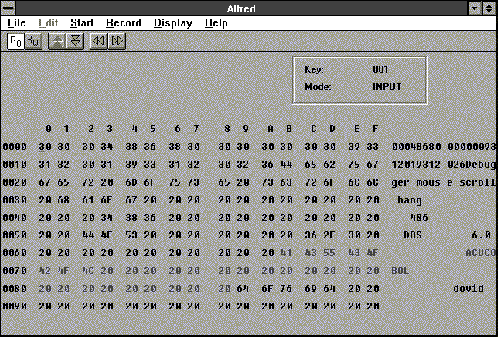
You can use the mouse or special keys to move around the screen and change the display. The special keys work as follows:
1. The Arrow keys move around the screen.
2. The Page Up/Page Down keys display the previous/next page.
3. The Home key goes to the first byte of the record.
4. The End key goes to the last byte of the record.
5. Ctrl-X key undoes the last change. (Repeatedly pressing ctrl-x will continue to undo the last change, up to 21,000 single-byte modifications.)
6. Ctrl-T toggles between Hex and Octal display.
7. Ctrl-N gets the next record.
8. Ctrl-P gets the previous record.
9. The TAB key toggles between the binary data and the ASCII data.
In the ASCII display, you can enter any printable character. In the binary display, you can enter hexadecimal or octal characters only.
If you want to convert data to/from hexadecimal or octal format to ASCII, see the description of the ASCII2HEX, ASCII2OCTAL, HEX2ASCII, and OCTAL2ASCII routines in Appendix I.
3.5.5.2 Editing with an XFD
This section describes how editing is performed when alfred has field-level information about the file (an XFD). In this case, all editing is done at the field level.
The data display typically looks like the following:
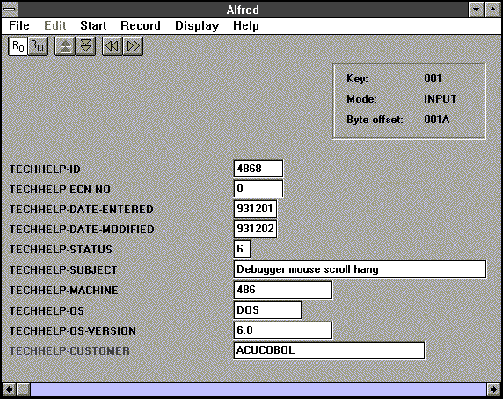
If a field is too large to be displayed in the Value area, you may scroll right or left to see all the data. On character-based systems, the symbols < and > at the beginning or end of the Value line indicate whether to scroll left or right, respectively, (or both) to see more data.
The option Evaluate Conditions becomes available under the Display menu. If you change a field that is the controlling value for a WHEN directive in the XFD, the display of data associated with that directive will not be updated to match the new condition until you select Evaluate Conditions.
3.5.5.3 Menu bar choices
The following menu bar and, on graphical systems, toolbar are always available:

On character-based systems, use the <esc> key, or mouse, if supported, to activate the menu bar.
Depending on the current state of the editor, some items on the main menu or submenus may be displayed at half intensity, or gray, or in parentheses. Such menu items are unavailable, because they are invalid given the program state.
File menu
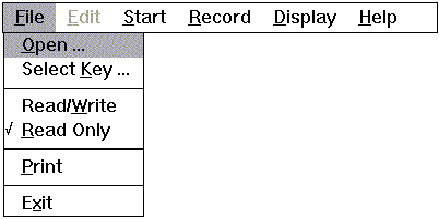
Open prompts for the name of a new file to edit.
Select Key displays a dialog box that allows you to select a new sort key.
Read/Write opens the current file I/O. You must choose this option if you want to change the contents of the data file. You can also open the file I/O with the "RW" toolbar button:

Read Only returns the current file to read-only mode. This mode ensures that changes will not be made permanent (written) in the file. By default, data files are opened in read-only mode. You can also change the input status to read-only with the "RO" toolbar button:

Print sends the entire current record to the printer.
Exit shuts down the editor.
The Edit menu

Undo causes the last change to be undone. This menu option is available only when the data file is open for I/O and a change has been made.
Start menu
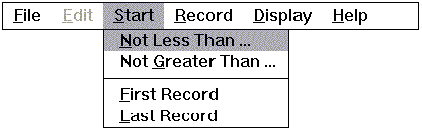
Not Less Than prompts for a key value and instructs alfred to display the first record whose key value is equal to or greater than the value provided.
Not Greater Than prompts for a key value and instructs alfred to display the first record whose key value is equal to or less than the value provided.
First Record instructs alfred to display the first record in the file.
Last Record instructs alfred to display the last record in the file.
Record menu
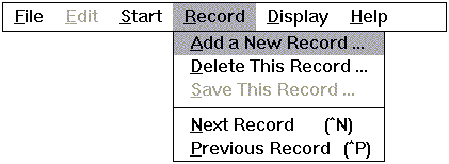
Add a New Record prompts for a key value and allows you to enter a new record.
Delete This Record deletes the current record. A dialog box is displayed to confirm the delete action.
Save this Record saves the current record.
Next Record retrieves the next record. You can also display the next record by clicking on the Next Record button on the toolbar:

or by holding down the "Control" key and typing the letter "n".
Previous Record retrieves the previous record. You can also display the previous record by clicking on the Previous Record button on the toolbar:

or by holding down the "Control" key and typing the letter "p".
Display menu
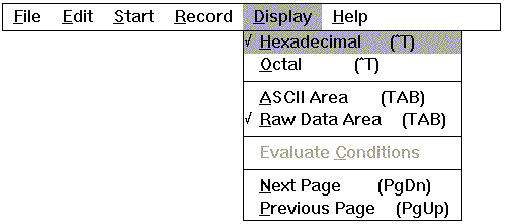
Hexadecimal causes the left portion of the screen (binary area) to be displayed in hexadecimal. This option is valid only when you are editing without an XFD.
Octal causes the left portion of the screen (binary area) to be displayed in octal. This option is valid only when you are editing without an XFD.
ASCII Area moves the cursor to the right portion of the screen. This option is valid only when you are editing without an XFD.
Raw Data Area moves the cursor to the left portion of the screen. This option is valid only when you are editing without an XFD.
Evaluate Conditions causes the display of data associated with a WHEN directive to be updated to match a new controlling value. Choose this option after you change a field that is the controlling value for a WHEN directive. See User's Guide section 5.3 for more information about directives.
Next Page displays the next screen of data.

Previous Page displays the previous screen of data.

Help menu

The Help menu option provides summary information about alfred functions.