


When alfred is started, it needs to know a number of things about the file to be edited before it can display file records or support record editing.
1. alfred needs to know the name of the data file to be edited.
2. If it's available, alfred will use the data file's companion data dictionary (XFD file) to identify the fields in each record. This allows alfred to display each record in a format that is more meaningful and easier to read. alfred automatically looks for a data dictionary when the data file is specified, but you can also specify the XFD file explicitly at startup.
3. If a data dictionary doesn't exist, alfred prompts for keymap information. The keymap information must describe the type of data at each character position in the key.
4. alfred needs to know which key to use to sort the records.
The following sections describe how these four items are entered.
3.5.4.1 Initial startup and filename designation
To start alfred under UNIX, enter:
runcbl alfred [datafile [XFDfile]]
at the operating system command line.
To start alfred in a graphical environment, double click on the alfred icon, or use the command line option , such as "Run" in the Program Manager File menu or the Start menu under Microsoft Windows, and enter:
wruncbl alfred [datafile [XFDfile]]
datafile is the name of the indexed file to be edited. XFDfile is the name of the XFD file associated with datafile. Both datafile and XFDfile are optional. However, if you start alfred without specifying a data file name, you will be prompted for a filename and an XFD at the beginning of the program:
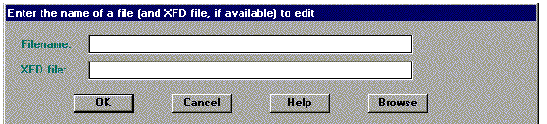
alfred does not use the FILE-PREFIX and FILE-SUFFIX configuration variables. Therefore you need to specify either a full path, or a relative path from the current directory, when you specify file names. You must also include the filename suffix.
On hosts that support a file system browsing function, a Browse push button is included in the bottom right of the File Open dialog box (as shown above). Click the Browse button to initiate the browse activity.
After you enter a filename, even if you do not specify an XFD file, alfred will try to locate a matching XFD file. In order for alfred to begin its search, you must move to the XFD File field on the screen. You may <Tab> over to the field, or click on it with the mouse. Then select "OK" when you are ready for the search to begin. It looks for an XFD file that has the same base name as the data file, plus the extension ".xfd". It first looks for the XFD in the directory specified for the data file. It then looks in the current directory. Lastly, it looks in the directory specified in the runtime configuration variable XFD-DIRECTORY. If alfred finds a matching XFD file, the next prompt you see is for the key selection. If alfred doesn't find an XFD file, you are prompted for key information.
Supplying an XFD file to use with the datafile gives alfred valuable information about the fields, which makes the screens of data more readable, and makes editing much easier. See section 5.3 for more information about XFD files.
3.5.4.2 Specifying the key
Whether you designate an XFD file or not, alfred needs to know which key to use to sort the records.
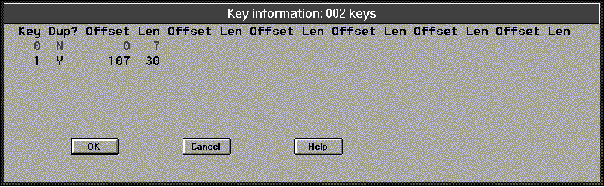
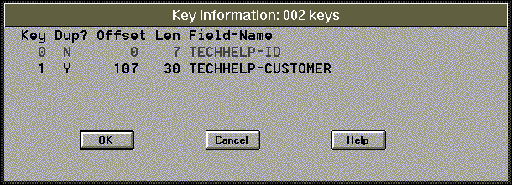
alfred queries the file about its key structure, and displays this information to the user, one key per line.
If no XFD is available, the display looks like this:
If an XFD file has been specified, the key display for the same file looks like this:
On a graphical system, select a key by clicking on an item in the Key list. Then click "OK" or press <return> to accept the key. On a character-based display, use the mouse or the arrow keys to select the desired key, and press <return> to accept the key. The selected key is used to sort the file.
On systems without mouse support, you can navigate the screen and select a key with the following special keys:
1. The Up arrow highlights the previous key.
2. The Down arrow highlights the next key.
3. The Page Up displays the previous page of keys.
4. The Page Down displays the next page of keys.
5. The Home key returns to the first key.
6. The End key positions the cursor at the last key.
When you have selected the key, if you've designated an XFD file, alfred has all the information it needs to display the data. You are now ready to edit the file. For a discussion of editing options, proceed to section 3.5.5 below. If you are not using an XFD file, you'll need to provide certain keymap information, as discussed in the next section.
3.5.4.3 The keymap
If you've chosen a key, but are not using an XFD file, alfred needs information about how to accept and display the key. This information is referred to as the keymap for the key. A keymap is a series of As, Ds, Os, and Xs, one character for each byte in the key.
Each character in the keymap describes the type of data alfred should find at the corresponding character position.
A An "A" indicates alphanumeric data.
D   A "D" indicates binary data that should be accepted and displayed
    in decimal format.
O   An "O" indicates binary data that should be accepted and displayed
    in octal format.
X   An "X" indicates binary data that should be accepted and displayed
    in hexadecimal format.
A series of characters can be represented with count notation, like COBOL picture clauses. For example, a keymap of "AAAAA" is equivalent to "A(5)".
alfred prompts for keymap information by displaying the following input screen:

You need to enter a keymap for each segment of the key. Each keymap must have non-space characters equal to the number of bytes indicated under "Bytes". Incomplete keymaps are indicated by an `S' in column 1. Keymaps with invalid characters are indicated by a `C' in column 1.
Here's an example:
Suppose the first segment of the key is a PIC 9(5) field, and the second segment is composed of two fields, a PIC X(15) and a PIC 9(8)V99 COMP 6.
You could enter the following keymap:
A(5) for the first segment, andA(15) X(5) for the second segment
Sometimes segments of a key are composed of different types of data, even though they are known to the file to be contiguous. For clarity, spaces are therefore allowed in keymap descriptions; the spaces themselves do not have value, but are just indicators that the actual segment is to be viewed as multiple logical segments.
If the keymap entered is not valid, a character is displayed in column one of the segment line. The character "S" indicates that the keymap is incomplete. The character "C" indicates that the keymap contains an invalid character.
It is possible to enter more characters for a keymap than the segment contains, so all keymap entries are checked for size as well as type.