


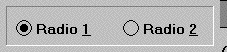
A RADIO-BUTTON control is similar to a check box, except that the user can usually select only one radio button out of a group of buttons. Selecting one causes any other selected button to become unselected. These groups of buttons typically present a small set of choices that affect a single program function.
The set of RADIO-BUTTON properties includes:
Common Properties
TITLE
Radio buttons may have titles. The title typically appears to the right of the button. The "TITLE" phrase is used to specify the title. A key letter may be specified in the title (see Book 3, Chapter 6, section 6.4.9, "Common Screen Options").
VALUE
Radio buttons have numeric values. A value of "0" indicates an unselected radio button. A value of "1" indicates a selected radio button.
SIZE
The LINES and SIZE values describe the size of the radio button's title area. The LINES value describes the height of the title area, in lines. The SIZE value specifies the width of the title area, using the width of the "0" (zero) character as the base unit. Added to the title area is the overhead needed for the actual button. This usually adds several character positions to the width, and may affect the height if the button is taller than the title's font.
When the program executes on a non-graphical system, the values specified in the CLINES and CSIZE phrases, if present, replace the values specified by the LINES and SIZE phrases.
The default value of LINES is "1". The default value of SIZE is computed by measuring the length of the title using the button's font and dividing by the width of the "0" character. Thus, the default width of a radio button exactly occupies the space its text takes up on the screen.
When used with the BITMAP style, the LINES and SIZE values have a different meaning. The values are the number of pixels in the height and width of the bitmap image (see Chapter 3, section 3.8, for details). If omitted, the default values depend on the host system. Under Microsoft Windows, the default LINES value is "15" and the default SIZE value is "16". These values correspond to the size of buttons typically found on a toolbar.
COLOR
Radio buttons use both the foreground and background colors specified. If either is omitted, the corresponding color of the button's owning subwindow is used.
Bitmap radio buttons do not use the specified colors. Instead, the colors are derived from the bitmap and the system defaults for push buttons.
STYLES
BITMAP This style causes the radio button to be drawn with a bitmap instead of its usual appearance. See Chapter 3, section 3.8 for a complete description.
FRAMED This style is used only with bitmap buttons. It requests that a thin frame be drawn around the button. Typically this appears as a thin black line. Not all systems support frames, in which case the request is ignored. By default, buttons are framed under Windows 3.1, Windows for Workgroups, and Windows NT.
UNFRAMED This style is used only with bitmap buttons. It requests that the button be drawn without a frame. Not all systems support unframed buttons, in which case the request is ignored. By default, buttons are not framed under Windows 95.
SQUARE This style is used only with framed bitmap buttons. It forces the button to have square corners. Without this style, the button will have slightly rounded corners.
SELF-ACT This style creates a self-activating radio button. The behavior of the SELF-ACT radio button is the same as that of the SELF-ACT push button (see section 5.4, above). Self-activating radio buttons return control to the previously active control or window when they are clicked. Usually, you will want to use the NOTIFY style in conjunction with SELF-ACT so that your program is informed whenever the radio button is clicked.
NOTIFY This style tells the runtime to generate a CMD-CLICKED event whenever the value of the radio button is changed by the user. This allows your program to respond immediately to the change. In essence, the radio button will now act like a combination radio button and push button. Without the NOTIFY style, the radio button remains active after it has been changed (exception: see SELF-ACT above).
NO-GROUP-TAB Normally, radio buttons that belong to a button group treat the "Tab" and "Backtab" keys in a special fashion. Any time a radio button has a non-zero GROUP special property, it acts as if it also has the NO-TAB style unless it is the group leader. The group leader is the radio button that is currently "on," or the first radio button in the group if they are all "off." The effect is that when you tab to a radio button group, control passes to the button that is on, or to the first button in the group if none is on. Note that the NO-GROUP-TAB style suppresses this special handling.
LEFT-TEXT Radio buttons with this style display their text to the left of the box instead of to the right. Note that if you use this style and try to vertically align several radio buttons, the buttons may not align vertically. This is because the default behavior of the runtime is to place the right edge of the button at the minimum distance needed from its left edge to accommodate the control's text. This results in the buttons being placed in different columns depending on the text of each control. Supplying a uniform width using the SIZE property overrides this behavior. (create, modify)
FLAT This style is used only with bitmap buttons. It creates a radio button without visible borders on Windows systems. On non-Windows systems, this style has no effect.
Special Properties
BITMAP-NUMBER (numeric) This property identifies a particular bitmap image to use with the radio button (see Chapter 3, section 3.8 for details). If you explicitly name this property when creating a control, the BITMAP style is automatically applied by the compiler. Note that this does not occur if you use the PROPERTY phrase to specify this property (by giving its identifying number).
BITMAP-HANDLE (handle) This property identifies the bitmap image strip to use with the radio button. See Chapter 3, section 3.8 for details.
TERMINATION-VALUE (numeric) This property works in a manner identical to the TERMINATION-VALUE push button property. This property is used only when the NOTIFY style is also used. The compiler applies the NOTIFY style automatically if you explicitly name this property when creating a control. Note that the NOTIFY style is not automatically applied if you use the PROPERTY phrase to specify this property (by giving its identifying number).
EXCEPTION-VALUE (numeric) This property works in a manner identical to the push button property of the same name. This property is used only when the NOTIFY style is also used. The compiler applies the NOTIFY style automatically if you explicitly name this property when creating a control. Note that the NOTIFY style is not automatically applied if you use the PROPERTY phrase to specify this property (by giving its identifying number).
GROUP (numeric) Radio buttons usually operate in groups of related buttons. Normally, only one button of the group may be selected. When a button is selected, all other buttons of the same group are unselected. The GROUP property describes which buttons belong together. In any one floating window, all radio buttons with the same non-zero GROUP property value are treated as a single group. The runtime will ensure that only one button in a group is selected at any one time.
The default GROUP value is "1". If all radio buttons on the same floating window retain the default value, they will be treated as a single group.
Radio buttons with a GROUP value of "0" do not perform any checks to ensure that only one button is selected. These buttons behave much like check boxes; each one may be independently selected.
GROUP-VALUE (numeric) This property simplifies the process of managing a group of radio buttons. Normally, the program must determine which button in a group is selected by examining the value of each button. The button with a value of "1" is the selected button. The GROUP-VALUE property is used to turn the value checking process into a single operation. You assign each radio button in a group a distinct GROUP-VALUE number. This links each button with its corresponding GROUP-VALUE. In this way, you can determine which button is selected by assigning all of the buttons in the group the same VALUE data item. The data item will hold the GROUP-VALUE number of the selected radio button.
Technically, this works as follows. For any radio button with a non-zero GROUP-VALUE property, a selected button will update its VALUE data item only during an ACCEPT. A selected button will return its GROUP-VALUE property as its VALUE. During a DISPLAY, a radio button will be selected only if its VALUE matches its GROUP-VALUE. Any other VALUE will be treated as a VALUE of zero.
Use this by assigning distinct GROUP-VALUE numbers to each button in a group, and by assigning all the buttons to the same VALUE data item. Then you can select a button by moving the button's GROUP-VALUE number to the VALUE data item and updating all the buttons. On input, you can determine which button is currently selected by simply examining the VALUE data item. It will contain the GROUP-VALUE number of the selected button.
The default value for GROUP-VALUE is zero, which disables the GROUP-VALUE mechanism.
Events
CMD-CLICKED
CMD-GOTO
CMD-HELP
MSG-VALIDATE
Examples
The following creates a simple radio button:
DISPLAY RADIO-BUTTON, "&Left Align",

 HANDLE IN RADIO-BUTTON-1.
Frequently, you will want to create several radio buttons, each offering the user a different option. Here is a Screen Section entry that specifies three buttons:
01  ALIGNMENT-CHOICES.

    03  RADIO-BUTTON, "&Left", USING ALIGN-CHOICE

        GROUP-VALUE 1.

    03  RADIO-BUTTON, "&Right", USING ALIGN-CHOICE

        LINE + 1.5

        GROUP-VALUE 2.

    03  RADIO-BUTTON, "&Center", USING ALIGN-CHOICE

        LINE + 1.5

        GROUP-VALUE 3.
In the preceding example, ALIGN-CHOICE is set to "1", "2", or "3" depending on which radio button is selected.
Here are the same buttons as they might appear in a toolbar. These buttons are bitmap buttons. Also, instead of storing their value, they simply notify the COBOL program when they have been pressed (via the EXCEPTION-VALUE). Like most toolbar buttons, they are self activating. This frees the COBOL program from having to explicitly ACCEPT the toolbar buttons.
01  TOOLBAR-CHOICES.

    03  RADIO-BUTTON, "Left",

        NOTIFY, SELF-ACT

        BITMAP-NUMBER 1, EXCEPTION-VALUE 1.

    03  RADIO-BUTTON, "Right", OVERLAP-LEFT,

        NOTIFY, SELF-ACT,

        BITMAP-NUMBER 2, EXCEPTION-VALUE 2.

    03  RADIO-BUTTON, "Center", OVERLAP-LEFT,

        NOTIFY, SELF-ACT

        BITMAP-NUMBER 3, EXCEPTION-VALUE 3.
Several other examples of programming radio buttons can be found in the sample programs included with the release materials. These examples demonstrate a range of application, including use of the GROUP special property and bitmap buttons. Look in "tour.cbl" for a simple example. See "radiobtn.cbl" for a set of basic examples. See "winspool.cbl" for a more complex use of radio buttons.