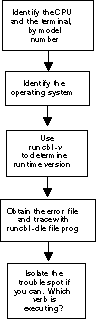
The runtime system contains a built-in debugger that allows you to view the source code while you are debugging. To prepare to use source debugging, you must compile with the "-Zd" option.
For example:
ccbl -Zd -o myprog myprog.cbl
Where:
-Zd compiles the program for source-level debugging
-o allows you to specify the name of the output file for the object code
myprog is the user-specified name of the output file
myprog.cbl is the name of the file containing the COBOL source code
Using the debugger
Then, when you execute the program, specify "-d" to turn on the debugger. For example:
runcbl -dle errfile myprog <return>
Where:
-d turns on the debugger
-l causes the contents of the runtime configuration file to be included in the error output
-e causes the error output to be placed in the file named immediately after the option
errfile is the user-specified name of the error file (Be sure to give a file name if you use the "-e" option.)
myprog is the name of your object file
Use "s" to step through the program one step at a time, or use the other options described in Chapter 3, section 3.1.3, Debugger Commands.
Using file trace
Another helpful tool is the file trace feature of the debugger. This enables you to save information about all file OPENs, READs, and WRITEs. File trace can be used even if the program was compiled without the debugging option. The file trace information is saved in the error file.
To do a file trace, type:
runcbl -dle errfile myprog <return>
Because you specified "-d" (for debugger) on your command line, you will be at the debugger screen after you press <return>. To turn on file tracing, type:
tf <return>
"FILE TRACE" is echoed on the screen.
Some file systems can print extra information if a higher level of tracing is enabled. This extra information is useful primarily to the Acucorp Technical Support department, and they may ask you to execute a "tf #" for some integer.
If you are writing to an error file, you can execute this debugger command:
t flush <return>
to cause the error file to be flushed to disk after each write. This can be useful if your program terminates unexpectedly. Note that this option slows down the processing but ensures that the error file is complete.
Type:
g <return>
You will now be running your program normally. Proceed until you encounter the error condition, and then exit. Your error file will contain the error information, all COBOL configuration file variables that you have set, and a record of every file operation.
This can be especially helpful as you assess the cause of the problem.
We would be happy to assist you with the resolution of runtime problems. Questions that require extended research are entered into our Technical Support database and are assigned a tracking number. We use this tracking number when we phone to give you updates on our investigation.
Here's the information we'll need to start our research: