


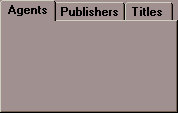
The TAB control combines a box with a tab for a control that looks like a file folder. The user may click on any tab to bring it forward. The user may also activate a particular tab by typing the key letter (the underscored letter in the tab's text) in conjunction with the "Alt" key. You may define a tab's key letter by placing an "&" in front of the intended key letter in the tab's text. This appears as an underscored letter when the tab is displayed. For example,
DISPLAY TAB-CONTROL, TAB-TO-ADD = ("Tab&1", "Tab&2")
Creates a control with two tabs. The first tab has a key letter of "1" and the second tab has a key letter of "2".
The program typically places different screen elements in the box depending on the tab selected.
When a user clicks on a tab, the program is informed of the new selection and the tab's appearance is updated. The behavioral distinction between tabs and push buttons is that a tab responds immediately when clicked, and a push button responds with the "clicked" event only when the mouse button is released.
You may allow the user to activate the tabs with the keyboard by accepting the TAB control as you would any other control (but you need not do so if you want to provide only a mouse interface). During the keyboard operation of the tab controls in Windows applications, the following logic is used by the runtime to process the arrow keys:
Left Arrow keys are processed by Windows if the first item in the tab control is not active. If the first item in the tab is active, then the runtime processes the left arrow in the usual way (depending on the value of KEYSTROKE entries).
Right Arrow keys are processed by Windows if the last item in the tab control is not active. If the last item in the tab control is active, then the runtime processes the right arrow in the usual way.
If the tab is a multiline tab, then up and down arrows are processed by Windows instead of the runtime.
More: