


The Acu4GL product for Microsoft SQL Server is an add-on module. The Acu4GL for Microsoft SQL Server product installation includes a .DLL file that is detected at runtime. While in the past, 32-bit users needed to relink the runtime, this is no longer necessary.
The Acu4GL product can be executed on a machine that is running any 32-bit Windows platform from Microsoft. The following diagrams show the supported machine configurations:
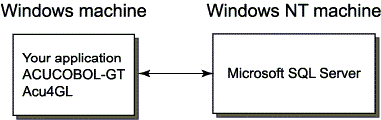
Note that the client machine may be the same machine as the server.
Installation instructions for each of these configurations are given in the next section. The instructions describe the steps you must follow on both the client machine and the server machine.
CD-ROM installation
Instructions for installing your Acu4GL product from the ACUCOBOL-GT Development Suite CD-ROM are contained on the Quick Start card that accompanied the product. Please refer to it for installing the ACUCOBOL-GT Development Suite, which includes Acu4GL.
Once the installation is complete, please refer to this appendix for setting up your Acu4GL product.
Diskette installation on the client machine
If Microsoft SQL Server is not already on your system, install and configure Microsoft SQL Server version 6.5 or later before you install Acu4GL for Microsoft SQL Server.
To install Acu4GL for Microsoft SQL Server on your machine:
1. Start Windows.
2. Insert the first Acucorp diskette.
3. Click Start and select Run.
4. On the command line, type:
a:setup
(or b:setup, if you're using the b: drive)
Then press Enter or click OK and follow the onscreen instructions.
Installation steps on a Windows NT server machine
Complete the following steps to install the Acu4GL product on a Windows NT server machine.
Step One: Install SQL Server
Microsoft SQL Server, version 6.5 or later, must be installed and configured on the Windows NT server machine before you install Acu4GL for Microsoft SQL Server on the client machine. Follow the instructions from your RDBMS vendor.
The isql product, which is an interactive query tool, is also necessary for installing the ACUCOBOL-GT stored procedures.
The Acu4GL product does not need isql after installation, but it is a tool that will give you quite a bit of flexibility. It allows you to do database work outside of COBOL, including interactive queries, table creation, table modification, and creation of views, constraints, and relationships between tables.
Acucorp does not provide these products.
Step Two: Copy the batch file
MS_INST.CMD is a batch file from ACUCOBOL-GT that will create the MS_INST.SQL file, which is the collection of stored procedures necessary for executing the Acu4GL product. Copy MS_INST.CMD to your server machine into a directory of your choice.
Step Three: Execute the batch file
To execute the batch file, enter
MS_INST LockDatabase
where LockDatabase is the database you want to use for the internal ACUCOBOL-GT lock tables. If this database does not already exist, it will be created.
Everyone who will use the Acu4GL for Microsoft SQL Server product will need to have write access to this database.
This step creates MS_INST.SQL, which is the collection of stored procedures necessary for executing the Acu4GL product.
Step Four: Install the ACUCOBOL-GT stored procedures
You must have database administrator privileges to do this step. You need to enter the password for the database administrator.
Type:
ISQL -USA -Ppassword < MS_INST.SQL
SA represents the name of your system administrator. Be sure to enter the name appropriate for your site.
Another way to accomplish the same result is to use isql/W to execute MS_INST.SQL as a query. See your Microsoft SQL Server documentation for how to do this.
This completes the setup on the Windows NT server machine.
Installation instructions for Microsoft SQL Server are provided by Microsoft and need to be read and understood to install the Windows client. Be sure to choose your communication method at the client machine. To do this, follow the Microsoft SQL Server instructions provided with your Microsoft SQL Server software.