


As soon as your installation and setup are complete, you may run the demonstration program (demo.cbl) included on your distribution medium. This program will illustrate many of the Acu4GL product capabilities, including:
 how to map RDBMS data types to traditional COBOL data types
how to compile a COBOL program in preparation for interfacing with an RDBMS
how to modify records within the RDBMS database
The demo program simulates what might be used in a distributor's shipping department. You'll be creating the acuorders table, which contains information about the orders placed by the distributor's customers. The acuorders table has the following columns of information (the database data type and COBOL data type are shown for each):
| Column Name
| Data Type
| COBOL PIC
|
| order_num
| varchar(4)
| pic 9(4)
|
| order_date
| int
| pic 9(6)
|
| customer_num
| varchar(3)
| pic 9(3)
|
| ship_instruct
| varchar(40)
| pic x(40)
|
| backlog
| varchar(1)
| pic x
|
| po_num
| varchar(10)
| pic x(10)
|
| ship_date
| int
| pic 9(6)
|
| ship_weight
| decimal(8,2)
| pic 9(6)v99
|
| ship_charge
| decimal(6,2)
| pic 9(4)v99
|
| paid_date
| int
| pic 9(6) |
fd  orders.
01   order-record.
   03      order-num             pic x(4).
   03      order-fields.
      05      order-date         pic 9(6).
      05      customer-num       pic 9(3).
      05      ship-instruct      pic x(40).
      05      backlog            pic x.
      05      po-num             pic x(10).
      05      ship-date          pic 9(6).
      05      ship-weight        pic 9(6)v99.
      05      ship-charge        pic 9(4)v99.
      05      paid-date          pic 9(6).
First we'll compile the demo program. Then we'll prepare the data, and run the demo.
Compiling the demo program
To compile the demo program for use with the RDBMS data source, type one of the following:
ccbl32 -Fx -o demo demo.cbl <Enter>
(for ACUCOBOL-GT Version 4.2 or later, 32-bit version)
ccbl -Fx -o demo demo.cbl <Enter>
(for ACUCOBOL-GT Version 4.2 or later, UNIX version)
This will compile the program and generate the ACUCOBOL-GT data dictionary acuorders.xfd. The runtime system will use this data dictionary to map RDBMS data types to COBOL data types.
Verifying the runtime
Before starting the demo program, you need to verify the runtime. To do this, enter the following:
runcbl -vv or wrun32 - vv
Be sure that the version information you receive references your Acu4GL product.
Starting the demo program
Be sure the RDBMS data source is available and that all the non-Acu4GL environment variables required for your data source are set. To run the demo program, you'll need to notify the ACUCOBOL-GT runtime system that you will be interfacing to an RDBMS driver. You accomplish this by adding the following line to your runtime configuration file or to the machine's environment:
DEFAULT-HOST RDBMS_NAME
If you're running demo.cbl from the same directory where you placed the ACUCOBOL-GT data dictionary, you are ready to run.
If the data dictionary (orders.xfd, created when you compiled the demo program) is in another directory, you will need to add the following line to cblconfig:
XFD-DIRECTORY dir-containing-dictionary
Set any environment variables required for your specific Acu4GL product. See the "Designating the Host Data Source" or "Designating the Host File System" section in the appendix specific to your particular RDBMS.
At this point, you can run the demo program by typing one of the following:
wrun32 -c config demo <Enter>
(for ACUCOBOL-GT Version 4.2 or later, 32-bit runtime)
runcbl -c config demo <Enter>
(for ACUCOBOL-GT Version 4.2 or later, UNIX runtime)
For UNIX versions, you will see a character version of the following screen. For Window-based versions, this is what you'll see:
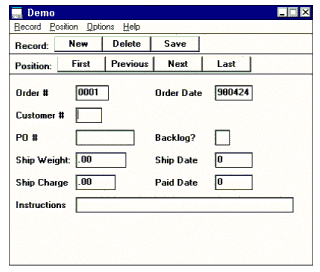
The demo program enables you to view or change any of the rows (records) in the orders table. You can also view the source code for the demo program.

The choices under the Record menu item offer the following functionality:
New
Clear all fields.
Delete
Remove the order that is being displayed from the database.
Save
Write (or rewrite) the displayed record.
Exit
Exit the demo program and return to the operating system prompt.

The choices under the Position menu item offer the following functionality:
First
View (or modify) the first record in the file.
Next
View (or modify) the next record in sequence.
Previous
View (or modify) the previous record in the sequence.
Last
View (or modify) the last record in the file.
Search
Enter the order number of the order to be viewed.
The choices under the Options menu item offer the following functionality:
View program
Start the debugger and display source code. Be sure you compiled the program with -Zd and execute it with -d.
Help
Help brings up a window containing a short description of the demo program.